
# How to Get Your AI Agent to Generate Captions for Your Videos
You can now ask an AI agent to generate captions for a video without leaving the conversation where you are already planning, editing, or automating your content. Connect ReelWords through Model Context Protocol (MCP), give the agent a video and clear instructions, and it can choose a style, start the caption render, monitor the job, and return the finished video. This is MCP video captioning in practical terms: the agent operates ReelWords on your behalf instead of sending you back to a separate web editor.
What It Means to Use an AI Agent to Generate Captions
An MCP connection gives an agent a defined set of ReelWords tools. The agent does not click around the web app or guess how the caption workflow works. It makes structured tool calls with your ReelWords API key and reads the structured results.
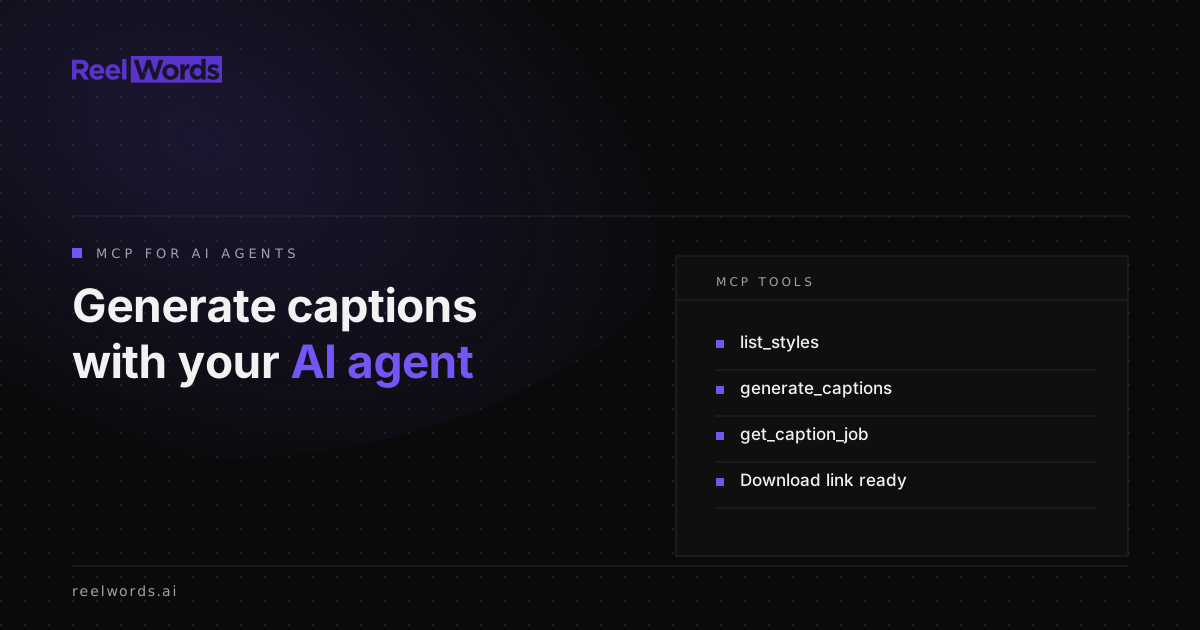
For caption rendering, three tools do most of the work:
list_stylesshows the built-in caption styles and any saved presets available to your account.generate_captionsstarts a captioned-video render and returns a job ID immediately.get_caption_jobchecks whether that job is queued, processing, complete, or failed, then returns the result when it is ready.
The same MCP server also exposes get_transcript for transcript extraction and check_usage for plan and quota details. Together, these tools let the agent make useful decisions before it starts work. It can confirm that a requested preset exists, check available usage, and keep a slow render out of the main conversation until it finishes.
This differs from opening ReelWords yourself, importing a video, choosing a style, and waiting for the export. The rendering engine is the same, but the control layer moves into Claude, Claude Code, Codex CLI, ChatGPT, Gemini, or another MCP-compatible client.
How MCP Video Captioning Works
The setup and rendering flow is straightforward:
- Connect ReelWords to your agent. Follow the MCP setup guide for the copy-paste configuration that matches your client. Authentication uses the same
rw_...API key as the ReelWords REST API. - Give the agent the source video and the outcome you want. Include the video input, the intended platform, and any direction about pace or visual style.
- Let the agent inspect styles. It calls
list_stylesto see the available built-in styles and your saved presets instead of inventing a style name. - Approve or specify the choice. You can name a preset yourself, ask for a recommendation, or have the agent explain a short list before rendering.
- Start the render. The agent calls
generate_captions. ReelWords returns a job ID immediately because video rendering takes time. - Monitor the job. The agent calls
get_caption_jobwith that ID until the render completes or returns a clear error. - Use the finished video. Once complete, the agent hands the result back to you or passes it to the next authorized step in your workflow.
The agent should not repeatedly start new renders while one is processing. The job ID exists so it can monitor the original request and keep the workflow predictable.
A Concrete AI Agent Caption Tool Workflow
Suppose you are preparing a vertical clip inside Claude Code. You have already selected the final edit, but you want captions that fit a clean educational post.
You might ask:
> Use ReelWords to caption this video. Check my available styles first, choose the clearest option for an educational vertical clip, start the render, and tell me when the finished video is ready.
The agent then runs a small, inspectable sequence:
- It calls
list_stylesand reads the available options. - It selects a built-in style or one of your saved presets based on your instruction.
- It calls
generate_captionswith the video and selected style. - It records the returned job ID rather than treating the render as complete.
- It checks the same job with
get_caption_jobuntil a result is available. - It returns the finished video details and reports any failure without hiding it.
You stay in one conversation, but each action remains explicit. If style choice matters, require approval before the render. If consistency matters more, tell the agent to use a named preset every time.
Where Caption Automation Is Most Useful
The strongest reason to automate captions with an AI agent is not saving a few clicks on one video. It is making captioning a reliable stage in a larger content process.
Useful patterns include:
- Batch preparation. Give the agent a set of approved clips, one caption preset, and an instruction to process them in sequence while tracking each job separately.
- Repeatable client work. Use saved presets so every approved video follows the same caption treatment without re-describing the design.
- Agentic content pipelines. Place caption rendering after clip selection and before publishing review, with a human approval point wherever your process needs one.
- Usage-aware workflows. Ask the agent to call
check_usagebefore a batch so it can report the current plan and remaining monthly quota. - Transcript-first review. Have the agent get a video transcript through MCP before you decide which source videos deserve a caption render.
For a platform-specific transcript example, see how an agent can work with a YouTube transcript through MCP. Transcript extraction and caption rendering are separate jobs, but they fit naturally in the same research-to-publish workflow.
Practical Rules for Reliable Caption Jobs
An AI agent caption tool is only as dependable as the instruction around it. Use these rules when you build the workflow:
- Name the source clearly. Make sure the agent knows which video to caption and does not choose between ambiguous files or links.
- Inspect styles before choosing. Ask it to use
list_styles, especially when saved presets may change. - Separate selection from rendering when needed. A quick approval step prevents a render with the wrong visual treatment.
- Keep the job ID. Every follow-up status check should use the ID returned by
generate_captions. - Treat completion as a result, not an assumption. Rendering is asynchronous, so the first response confirms that work started, not that the video is finished.
- Review before publishing. Check names, specialist terms, timing, and line breaks in the final video.
You can review ReelWords' available caption styles and AI caption features before deciding how much control to give the agent. For current plan details and render allowances, use the pricing page or have the agent call check_usage for your account.
Caveats Before You Generate Captions via MCP
MCP removes interface switching; it does not remove the time needed to render video. generate_captions is intentionally asynchronous, so a well-behaved client starts the job, keeps the returned ID, and checks it with get_caption_job.
The agent also needs access to the source you intend to process and permission to use your ReelWords connection. Do not paste an API key into ordinary chat messages. Store it using the secure configuration method described for your client in the MCP setup guide.
Finally, automation does not replace editorial review. Speech recognition can mishear names, brand terms, or unusual phrasing. Watch the rendered clip before it enters a publishing step, especially when the content represents a client or includes precise claims.
FAQ
Can an AI agent generate captions for my videos?
Yes. An MCP-compatible agent connected to ReelWords can inspect available styles, start a caption render, monitor its status, and return the completed result using ReelWords tools.
Which ReelWords tool starts a caption render?
generate_captions starts the render. It returns a job ID immediately, which the agent uses for later status checks.
Why does the agent need to call get_caption_job?
Video rendering is not instant. get_caption_job lets the agent check the existing job until it completes, fails, or returns a result, without starting the render again.
Can the agent use my saved caption presets?
Yes. list_styles returns the built-in styles and the saved presets that belong to the caller, so the agent can choose from options your account can actually use.
Can I choose the caption style myself?
Yes. Tell the agent which available style or saved preset to use. You can also ask it to list options and wait for your approval before it starts rendering.
Where do I connect ReelWords to Claude, Codex, or Gemini?
Use the ReelWords MCP setup guide. It contains client-specific configuration examples and points each supported client to the production MCP endpoint.
Put Caption Rendering Inside Your Existing Workflow
The useful shift is simple: your agent can move from discussing a caption task to carrying it out. Connect ReelWords, give the agent a defined style rule and review point, then let it manage the asynchronous render. Explore the available dynamic captions, check current pricing, and start with one video before expanding the workflow.