
Stop Re-Watching Videos to Find the Words
If you repurpose content, write show notes, pull quotes for clips, or build subtitles, you spend an absurd amount of time scrubbing through videos to capture what was actually said. Downloading the file, loading it into an editor, waiting on a transcription pass — it's friction before the real work even starts.
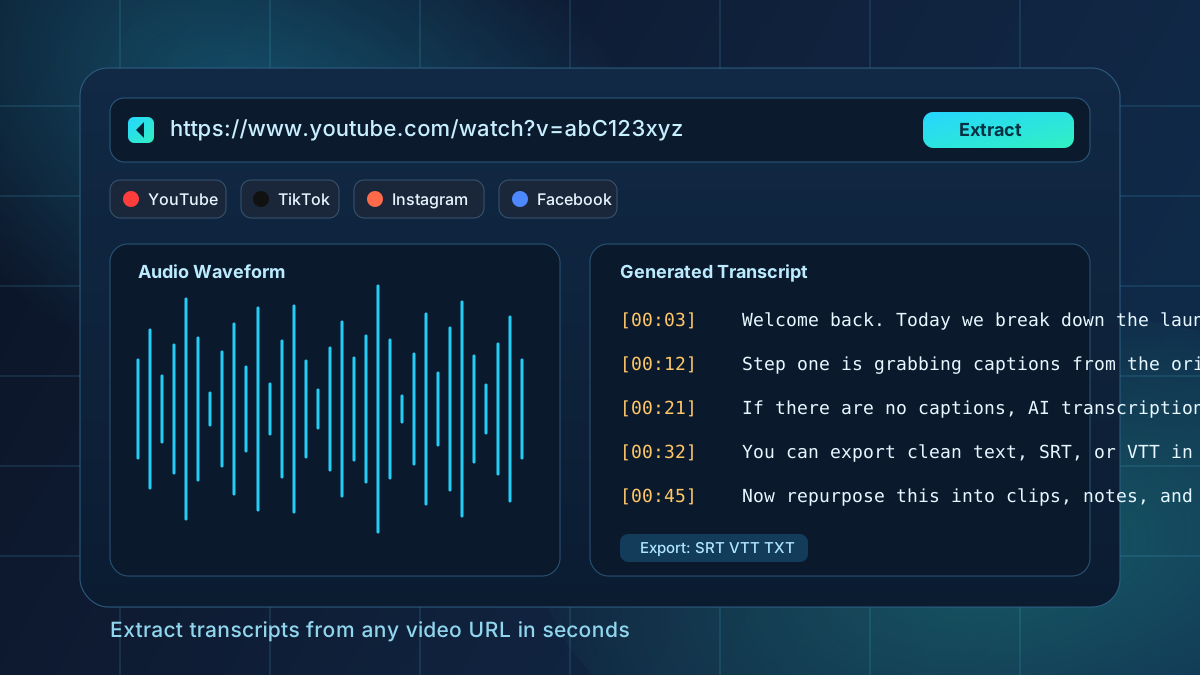
ReelWords' Transcript Extractor removes that step. You paste a link, and you get the transcript back — with timestamps where the source provides them, ready to read, copy, or download.
How It Works
The flow is deliberately simple:
- Open Video Transcribe in ReelWords and paste a link.
- ReelWords resolves the video and looks for the platform's own captions first.
- If captions exist, you get them back fast, with their original timing.
- If they don't, ReelWords downloads the audio and transcribes it with AI.
- The transcript appears on screen, segment by segment, with timestamps.
- Copy the text, or download it in the format you need.
Captions-first matters. When a platform already publishes a caption track, using it is faster, costs you nothing extra, and preserves the timestamps the publisher intended. AI transcription is the fallback for everything that has no captions — not the default.
Supported Platforms
You can paste a link from the major short- and long-form platforms, including:
- YouTube (videos and Shorts)
- TikTok
- Instagram (Reels and video posts)
- Facebook (videos and Reels)
- Many other public video URLs
Public, accessible videos work best. Private, age-gated, or login-walled content can't always be resolved — that's a platform restriction, not a ReelWords one. If a link can't be processed, you'll get a clear error rather than a silent failure.
What You Can Download
Once a transcript is ready, you can copy the full text to your clipboard or download it in any of these formats:
- SRT — the standard subtitle format for video editors
- VTT — the web/HTML5 subtitle standard
- Plain text — clean copy with no timestamps, ready to paste
- Timestamped text — readable text with
[mm:ss]markers on each line
Timestamps are included wherever the source provides them, so SRT and VTT files drop straight into your editing timeline.
Practical Ways to Use It
- Repurpose long-form into clips. Pull the transcript, find the strongest 30 seconds, and cut to it without re-watching the whole video.
- Write show notes and blog posts. Start from the actual words instead of a blank page.
- Subtitle a video you already have a link to. Export SRT or VTT and load it into your editor.
- Research competitors and references. Skim what a video says in text instead of watching it end to end.
- Make content accessible. A transcript is the fastest path to a screen-reader-friendly version of spoken content.
What It Costs
Every ReelWords account can extract 10 transcripts per month for free. That's enough to cover most creators' ongoing repurposing without thinking about it.
If you need more, upgrading to Pro raises your monthly limit to 100 transcripts, and top-up credits cover any overflow beyond your included allowance — so a heavy month never blocks you. Plan limits and pricing always reflect your live account; we don't hide the numbers.
Transcripts and Captions, in One Place
The Transcript Extractor pairs naturally with the rest of ReelWords. Pull a transcript to plan and write, then use the caption editor to produce styled, word-by-word captions for the clips you actually publish. One tool, from raw link to finished, captioned video.
Paste your first link in Video Transcribe and see the transcript come back in seconds.
FAQ
Can I get a transcript from a YouTube, TikTok, or Instagram link?
Yes. Paste a public link from YouTube, TikTok, Instagram, Facebook, or many other public video URLs. For a YouTube-specific walkthrough with timestamps, see How to Download a YouTube Transcript.
Does it use the platform's own captions?
ReelWords looks for the platform's own caption track first. If none exists, it transcribes the audio with AI instead.
What formats can I download?
You can copy the text or download SRT, VTT, plain text, or timestamped text. To learn which subtitle format to use, read SRT vs VTT.
Does it work on private videos?
Private, age-gated, or login-walled videos cannot always be resolved because of platform restrictions. Public, accessible videos work best.
How many transcripts can I extract for free?
Every account can extract 10 transcripts per month for free. Pro raises the limit to 100, and top-up credits cover any overflow. See the pricing page for current details.
Can I do this from an AI agent or through an API?
Yes. See Video Transcription API for Social Platforms and How to Get Transcripts With an AI Agent.
Next steps
Once you have a transcript, turn the best clips into styled captions with the ReelWords caption features, or convert other files with How to Convert Video to Text.