
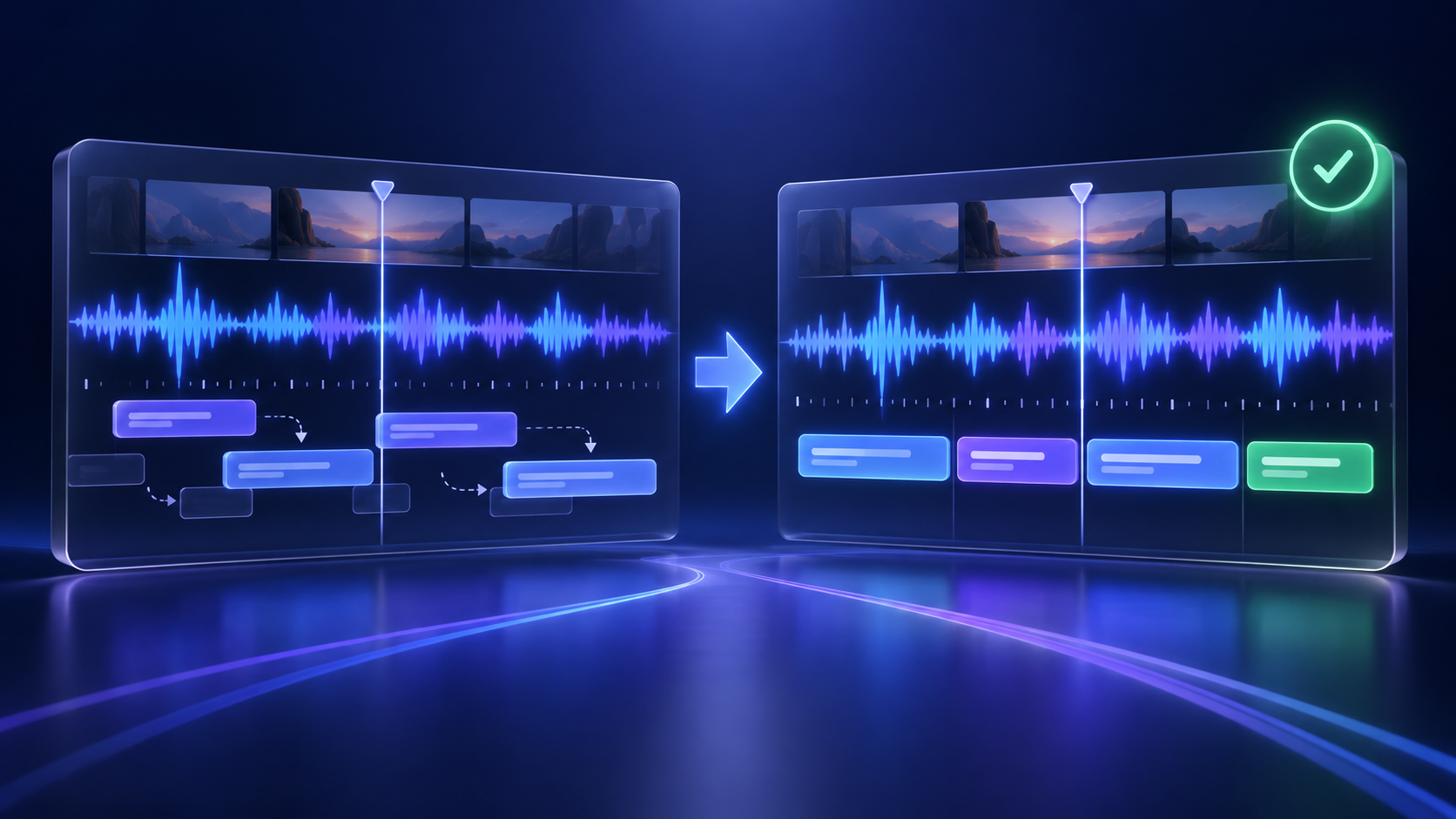
How to fix out-of-sync subtitles quickly
To fix out-of-sync subtitles, first decide whether every caption is wrong by the same amount or whether the error gets worse as the video plays.
- Same offset throughout: shift every subtitle earlier or later by one fixed amount.
- Gradual drift: stretch or compress the subtitle timing to match the video's duration or frame rate.
- Only a few lines are wrong: edit those individual cue boundaries.
- Words are correct but feel late: shorten cue duration and move the start time closer to the spoken word.
That diagnosis matters. A global time shift will not fix drift, and retiming every line by hand is wasted work when the whole track is simply two seconds late.
Why captions go out of sync
Subtitle timing usually breaks for one of five reasons:
- The subtitle file belongs to a different edit. An intro, ad, cold open, or deleted scene changed the video timeline.
- The frame rate changed. A subtitle track timed against one version can drift after conversion between common broadcast and film rates.
- Variable frame rate became constant frame rate. Phone and screen recordings often use variable frame rate, and an editing or encoding step may reinterpret the timeline.
- The audio was trimmed separately. Removing silence or moving a voice track without moving captions creates local timing errors.
- Automatic captions were accepted without review. Speech recognition can produce good words but still choose awkward cue boundaries.
Before editing, confirm that the video and subtitle file are actually the matching versions. Compare the first spoken sentence, a moment near the middle, and the final sentence. Those three checkpoints reveal most timing patterns.
Step 1: identify the sync pattern
Play the video at three points and write down the error.
| Checkpoint | Subtitle error | Likely problem |
|---|---|---|
| Start: 2 seconds late | +2.0 s | Fixed offset |
| Middle: 2 seconds late | +2.0 s | Fixed offset |
| End: 2 seconds late | +2.0 s | Fixed offset |
| Start: correct | 0 s | Possible drift |
| Middle: 1 second late | +1.0 s | Drift |
| End: 2 seconds late | +2.0 s | Drift |
| Most cues correct, three wrong | Mixed | Local cue errors |
Use a line with a sharp sound—a clap, consonant, cut, or door close—when possible. Soft speech makes a small timing difference harder to judge.
Step 2: fix a constant subtitle offset
If every cue is early or late by the same amount, shift the entire subtitle track.
Suppose the first subtitle begins at 00:00:03,000, but the speech begins at five seconds. Every cue needs a +2 second adjustment. The first timestamp becomes:
00:00:05,000 --> 00:00:08,200Most subtitle editors include an action named shift, delay, synchronize, or adjust all times. Enter a positive value when subtitles need to appear later and a negative value when they need to appear earlier.
After shifting, recheck the beginning, middle, and end. If the correction works at the start but not at the end, the track also has drift.
Step 3: fix subtitles that drift over time
Drift means the subtitle clock and video clock are progressing at different rates. The usual repair is a two-point synchronization:
- Choose a clear spoken moment near the beginning.
- Record its correct video time and current subtitle time.
- Choose another clear moment near the end.
- Record both times again.
- Use a subtitle editor's two-point sync, stretch, or scale function.
The tool recalculates every cue between those anchors. This is much safer than repeatedly applying small offsets.
A common source of steady drift is a frame-rate mismatch. For example, subtitles prepared for one cut or playback rate will not remain aligned with another. Confirm the source video before converting frame rates or trying a percentage-based correction.
Step 4: repair individual caption cues
When only a few subtitles are wrong, edit them locally.
For each problem cue:
- Move the start time to the first audible word.
- Keep the caption visible long enough to read.
- End it before the next speaker or major visual change.
- Remove unintended overlaps with adjacent cues.
- Break the line at a natural phrase boundary.
Avoid chasing millisecond perfection. A consistent, readable rhythm matters more than making every cue touch the exact acoustic boundary. Captions that flash too briefly are technically synchronized but still unpleasant to use.
Step 5: check the words, not only the timestamps
Timing repair is also a good moment to correct the transcript. Review:
- names, brands, and specialist terms;
- numbers, dates, and prices;
- speaker changes;
- meaningful sounds such as
[music]or[laughter]; - punctuation that changes meaning;
- lines that are too long for mobile screens.
For accessible captions, dialogue alone is not always enough. W3C guidance explains that captions should also communicate important non-speech audio and speaker identity when needed to understand the video.
Fix subtitle sync on YouTube
YouTube lets channel owners edit caption timing in YouTube Studio or download a caption file and change its timestamps. Its caption editing guide describes both approaches.
For a short correction, edit inside Studio:
- Open YouTube Studio.
- Select Subtitles and choose the video.
- Open the relevant language track.
- Adjust the cue timings around the waveform and preview the result.
- Publish the corrected track.
For a large shift or drift problem, download the file, repair it in a subtitle editor, then upload the corrected version. Keep the original as a backup until the new track has been checked.
Prevent subtitle timing problems in the next export
The cheapest sync fix is preventing the mismatch.
- Lock the picture edit before final caption timing.
- Generate captions from the same file you will publish.
- Avoid replacing the audio or intro after captions are approved.
- Convert variable-frame-rate phone footage before a complex edit.
- Name video and subtitle versions together, such as
launch-v07.mp4andlaunch-v07.srt. - Check three timeline points before delivery.
- Render a review copy and watch it at normal speed on a phone.
If you are generating the captions again, start from the final video. ReelWords can create a timed transcript from an upload or public video URL, then turn it into editable AI captions or export SRT and VTT files.
When to regenerate instead of repair
Regenerate captions when the subtitle file came from a substantially different edit, when hundreds of cues need local changes, or when the transcript itself is poor. Repair is best for a clean track with a measurable offset or scale problem.
For a repeatable workflow, generate captions from the final video automatically. If you are working with an existing MP4 or MOV file, follow the guide to adding subtitles to a downloaded video.
FAQ
Why do subtitles get more out of sync as a video plays?
That pattern is drift. It usually means the subtitle and video timelines have different durations or were prepared against versions with different playback rates.
How do I delay every subtitle by two seconds?
Use a subtitle editor's shift or delay-all-times function and enter +2.000 seconds. Preview at the beginning, middle, and end afterward.
Can I fix subtitle timing in a text editor?
Yes for a few cues, because SRT and VTT are plain text. For global offsets or drift, a subtitle editor is faster and less error-prone.
Why are automatic captions a fraction of a second late?
Automatic systems may wait for more speech context before closing a phrase. Tighten the cue boundaries after transcription, especially for fast short-form cuts.
Should captions appear before or after the word is spoken?
They should appear with the speech, not noticeably before or after it. A tiny lead can feel natural, but captions should never reveal a punchline well before delivery.
Does changing frame rate break subtitle timing?
It can, especially when the subtitle track and published video were produced from different conversions. Always time captions against the final master.
Make the final timeline the source of truth
Fix out-of-sync subtitles by identifying the pattern before touching every cue. Shift a fixed offset, scale a drifting track, and edit only the genuinely local errors.
When starting over is faster, use ReelWords to generate timed transcripts and captions from the final video. Review pricing for monthly limits and the FAQ for supported workflows.