
Caption line breaks work best when each line contains a phrase the viewer can understand at a glance. Break at a natural boundary, keep related words together, and check the result at phone size. A perfectly balanced rectangle of text is less useful than a sentence that reads smoothly.
If your automatic captions are accurate but still feel difficult to follow, the problem may be how the words are grouped. This guide focuses on that editing decision, with examples you can apply to Reels, TikTok videos, Shorts, and conventional subtitles.
How to choose caption line breaks
Start by reading the sentence aloud. Notice where the thought changes, then try a break there. Preserve names and small phrases that carry meaning together.
The Netflix English timed-text guide recommends grammatical breaks and keeping connected words together, including names and nouns with their articles. Those are useful editing principles. Netflix's delivery requirements are not universal rules for social video, so evaluate the final composition rather than copying a broadcast layout unchanged.
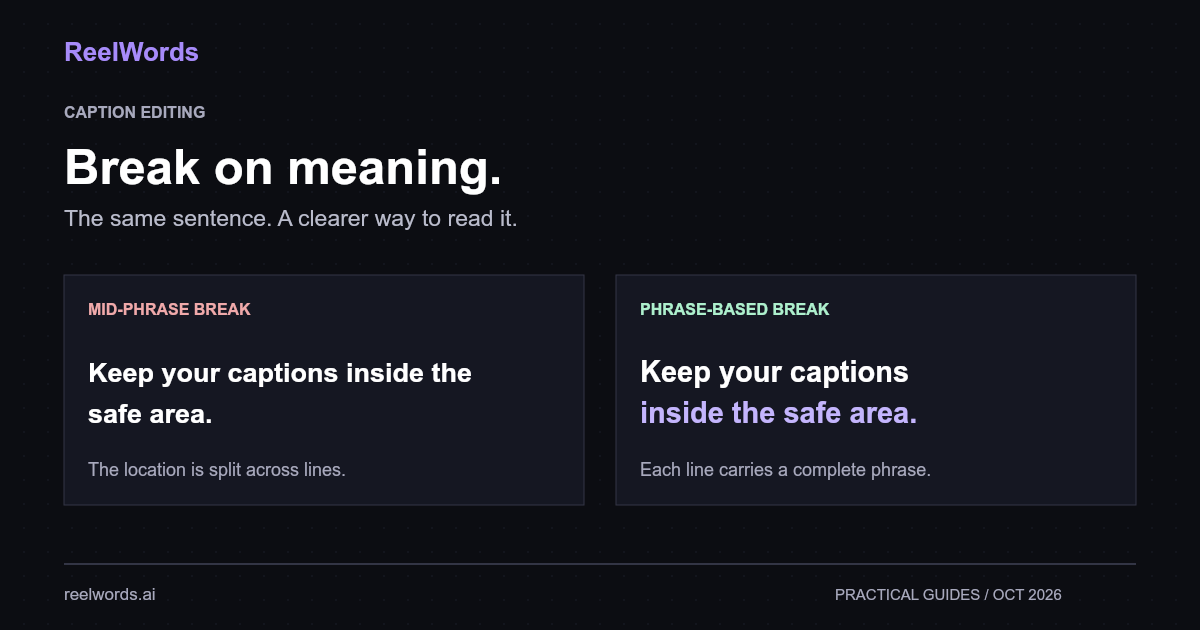
Consider this sentence: “Keep your captions inside the safe area.”
Awkward grouping:
Keep your captions inside the
safe area.
Clearer grouping:
Keep your captions
inside the safe area.
Both contain identical words. The second gives each line a useful job: the instruction first, then its location. These examples illustrate editorial choices; they are not results from a readability experiment.
A line break and a new caption are different edits
A line break changes the arrangement of words visible at the same time. Splitting a caption creates a new timed event, with its own start and end.
That distinction matters when the screen feels crowded. Making a long caption into three lines still asks the viewer to process all its text at once. Dividing it into two timed phrases may be easier to follow, provided each phrase remains visible long enough.
For a sentence such as “Save the original file before you export the captioned version,” try these sequential groups:
- “Save the original file”
- “before you export the captioned version.”
Then align each group with the speech. Do not make every small pause a new caption automatically. A speaker can hesitate in the middle of a phrase without creating a useful reading boundary.
If the words themselves are wrong, correct them before grouping. Our guide to fixing inaccurate auto captions covers that earlier review pass.
Five examples to check in your next video
The slash below represents a proposed line break, not text to display.
| Sentence | Awkward split | Better starting point |
|---|---|---|
| Keep your captions inside the safe area. | Keep your captions inside the / safe area. | Keep your captions / inside the safe area. |
| Maya Chen explains the next step. | Maya / Chen explains the next step. | Maya Chen explains / the next step. |
| Check the final export before publishing. | Check the final / export before publishing. | Check the final export / before publishing. |
| This works on phones and tablets. | This works on phones and / tablets. | This works / on phones and tablets. |
| Turn the music down before recording. | Turn the music down before / recording. | Turn the music down / before recording. |
These are starting points, not compulsory splits. If the whole sentence fits comfortably on one line, leave it there. If a suggested line is still too wide, change the grouping or caption duration before shrinking the words into something difficult to read.
A six-step mobile caption review
1. Finish the video edit first
Review the version you actually intend to publish. A later trim can move the speech relative to captions. Keep the uncaptioned master so you can make a clean correction.
2. Correct words and punctuation
Watch for names, numbers, and short words that change meaning. Punctuation helps expose sentence structure, making the next grouping pass easier.
3. Choose the font and usable width
Wrapping depends on the actual font, weight, size, and available space. Set these before polishing every break. See our caption font guide if wide letterforms or heavy styling are making short phrases overflow.
4. Review the longest captions
Start where the layout is under the most pressure. Keep compact phrases together, remove accidental extra spaces, and check whether a new timed caption would solve the problem better than another line.
5. Watch once with sound off
Use a phone-sized preview at normal playback speed. If you have to pause to finish reading, the caption needs more time, less visual competition, or a different grouping. Do not silently remove meaningful dialogue just to make the design fit.
6. Inspect the exported video
Check both the finished file and the destination app's preview. Confirm that controls, descriptions, and other overlays do not cover the text. A good editor preview cannot account for every publishing layout.
How many words should a caption line contain?
There is no useful universal word count. “I can do it” and “international distribution requirements” each contain a small number of words, but occupy very different widths and demand different reading effort.
For a first draft, use one compact phrase and add a second line only when it helps. Treat a words-per-line setting as an initial layout control, then inspect the result. For dense explanations, a stable two-line caption may work better than a sequence of rapidly flashing words.
ReelWords provides caption styles and editing features for building the visual treatment. Review the finished wording and grouping with the chosen style; an attractive preset does not resolve every long sentence automatically.
FAQ
Should captions use one line or two?
Use one when the phrase fits comfortably. Use two when a natural split preserves readable text size. Review the result against the video, rather than treating either count as always better.
Should every caption have the same number of words?
No. Consistent placement and styling can make the design feel coherent while the word count follows the sentence. Equal counts often produce awkward fragments.
Why do line breaks change when I change the font?
Fonts have different character widths and spacing. Changing the typeface, weight, or size can move words onto another line even when the text stays identical.
Are word-by-word captions easier to read?
They can emphasize a short phrase, but fast updates also ask viewers to keep tracking the text. Compare the effect with a stable phrase on the same clip before choosing it.
Can I fix line breaks after captions are burned in?
Return to the source project and export again. Burned-in words are part of the image. Keep the editable project and original video for this reason.
Start with the hardest sentence
Before restyling a whole video, fix its longest caption. Check the phrase grouping, phone-size legibility, and time available to read. Apply that decision to the remaining captions, then watch the complete export.
Explore ReelWords dynamic captions, compare pricing, or visit the FAQ to choose a workflow for your next clip.