
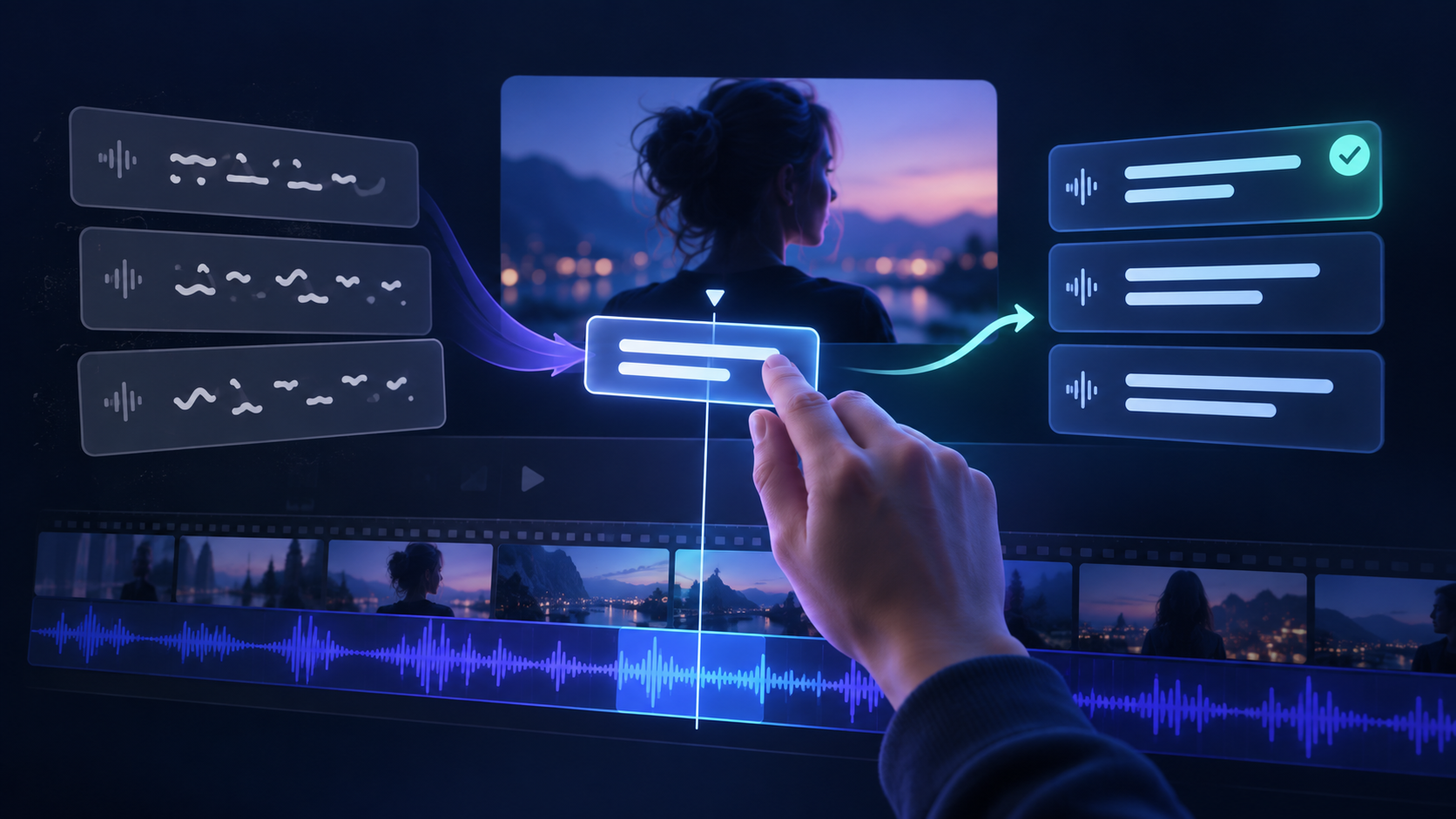
To fix inaccurate auto captions, treat speech recognition as a first draft. Listen to the finished video while reading every caption, correct the words that change meaning, then watch it once more with sound off. That second pass catches omissions that are easy to miss while listening.
Automatic captions are useful because they remove most of the typing. They can still mishear a product name, turn “fifteen” into “fifty,” or skip a short phrase. A polished caption style cannot rescue a wrong quote. This guide focuses on text accuracy; if the words are right but appear at the wrong time, use our separate guide to fix out-of-sync subtitles.
Why you need to fix inaccurate auto captions
Speech recognition predicts words from audio. It does not know which terms your audience expects, whether a number is plausible, or who is speaking unless that information is available and correctly captured. Noise, music, overlapping voices, unfamiliar names, and clipped speech give it less to work with.
Caption quality also means more than spelling. The W3C guidance on captions says automatic captions need checking and editing, and that captions should convey meaningful audio information. A review should therefore cover both spoken words and relevant sounds. For a broader publishing checklist, see our video accessibility captioning guide.
A five-pass workflow for correcting automatic captions
1. Generate from the final edit
Finish cuts, speed changes, and audio replacements first. Then generate the captions from the exact version you will publish. If you change the video afterward, check the captions again. A transcript made from an earlier edit can be accurate as text but wrong for the final timeline.
If you are starting from scratch, this automatic caption generation guide walks through the first pass. In ReelWords, you can generate captions, edit their text, choose caption styles, and render a captioned video. The generation step saves time; the listening pass supplies editorial judgment.
2. Verify high-impact words first
Play each sentence and compare it with the draft. Start with words whose errors would mislead a viewer:
- Names and brands: people, places, products, and acronyms.
- Numbers: prices, dates, percentages, measurements, and negations around them.
- Specialist terms: words your audience uses but a general speech model may not expect.
- Short words that reverse meaning: “can” versus “can't,” “is” versus “isn't,” and “fifteen” versus “fifty.”
Keep a small spelling list for recurring names. If the same term appears throughout a series, search the caption draft for each possible misspelling. Do not silently replace a quote with what you think the speaker meant; replay uncertain audio or ask the speaker.
3. Repair punctuation and caption breaks
Punctuation should make the spoken thought easy to follow. A misplaced period can turn a question into a statement, and a caption break in the middle of a name makes both halves harder to read. Read each cue aloud while the video plays. Keep related words together where timing allows, especially a number with its unit and a name with its title.
Avoid rewriting speech into polished marketing copy. Small readability edits may help, but the captions should still represent what the audience hears. If you need a concise promotional line that differs from the audio, put it in a separate on-screen graphic rather than presenting it as a caption.
4. Mark speaker changes and meaningful sounds
Two voices can become one undifferentiated stream in an automatic draft. Where the speaker is not clear from the picture, add a speaker label or another consistent cue. Review laughter, music, alarms, and other sounds when they matter to the scene. The W3C's media accessibility requirements describe captions as covering dialogue and important non-speech audio, and distinguish between speakers.
For short social clips, you may not need a label on every line. A label matters when a viewer cannot tell who said a line, especially in an off-camera exchange. Do not assume your caption generator has identified speakers correctly: check the result against the video.
5. Watch the whole video with captions on
Play it at normal speed on the size of screen your audience will use. Check that no words are cropped, no caption disappears before it can be read, and no correction created a new timing problem. Then mute the video and watch again. Can you follow the core message? Are a joke, instruction, or warning missing? Those are the remaining edits to make.
If the text is accurate but cues drift, follow the subtitle timing repair workflow. Text and timing need separate checks.
How to reduce errors in the next recording
The fastest fix starts before transcription. Record speech close to the microphone, reduce background music under dialogue, and avoid people talking over one another when possible. Ask speakers to spell unusual names or say the term clearly once. Keep a list of brand names, jargon, and figures beside you during review.
These steps make the audio easier to understand for both people and software. They do not remove the need for a final human check. Even a clean recording can contain an ambiguous name or a number that looks reasonable while being wrong.
FAQ
Why are my automatic captions wrong when the audio sounds clear?
Speech can be clear to someone who knows the topic while still containing ambiguous names, accents, acronyms, or phrases. Replay the questionable line and compare it with your terminology list.
Can I fix captions without regenerating the entire video?
If your editor keeps captions as editable text, correct the affected cues and render again. If you only have a video with text burned into the pixels, you generally need the original project or a fresh caption layer.
Should captions include every filler word?
Keep the speaker's meaning intact. Whether to retain every “um” depends on the format and audience, but do not remove words that change a quote, instruction, or answer.
Do sound effects need captions?
Include sounds that carry meaning, such as a doorbell, alarm, or audience laughter that explains a reaction. Decorative background music may need a brief cue when it matters to understanding the scene.
How do I fix captions that are accurate but late?
That is a timing issue. Compare the first, middle, and last cue with the audio, then use our guide to fix out-of-sync subtitles.
Is an automatic caption track ready for accessibility use?
It needs review. Check spoken words, speaker changes, meaningful sounds, readability, and timing against the finished video before publishing.
Ready to edit a draft and style the finished result? Explore ReelWords auto captions, review pricing, and check the FAQ for the current workflow.