
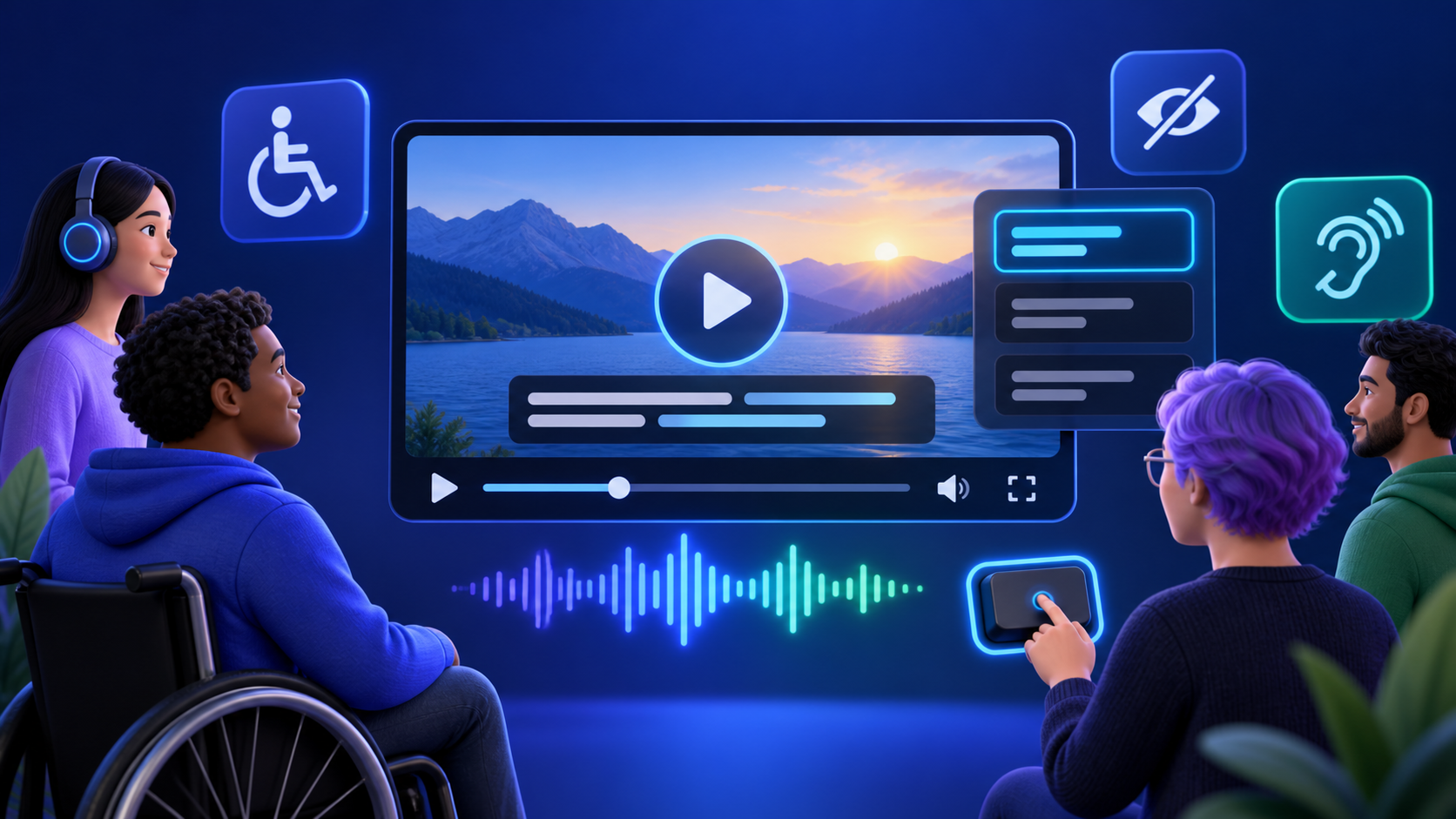
Video accessibility starts with equivalent information
Video accessibility means giving people a way to understand and operate video content regardless of whether they can hear the audio, see the image, use a mouse, or process information at the same pace as other viewers.
Captions are a central part of that work, but they are not the whole job. A practical accessible-video workflow may also need a transcript, audio description, an accessible media player, clear controls, and a publishing page that works with a keyboard and assistive technology.
This guide focuses on prerecorded video and the caption production process. It is not legal advice; requirements can vary by jurisdiction, sector, contract, and organization.
What WCAG 2.2 says about video captions
The Web Content Accessibility Guidelines 2.2 organize video requirements under time-based media.
For a typical prerecorded video with meaningful audio:
- Success Criterion 1.2.2, Captions (Prerecorded), Level A: provide captions for prerecorded audio in synchronized media, with a limited exception when the media is clearly labeled as an alternative to text.
- Success Criterion 1.2.3, Audio Description or Media Alternative (Prerecorded), Level A: provide a media alternative or audio description for meaningful visual information.
- Success Criterion 1.2.5, Audio Description (Prerecorded), Level AA: provide audio description for prerecorded video when needed.
Live video has a separate caption criterion. The correct target depends on the content and the conformance level your organization has adopted.
The key point is that captions are not simply a transcript broken into lines. W3C defines captions as a synchronized alternative for speech and the non-speech audio information needed to understand the media.
Captions, subtitles, and transcripts are different
These terms are often used interchangeably in creator tools, but they solve different problems.
| Asset | Contains | Synchronized? | Viewer control |
|---|---|---|---|
| Captions | Dialogue, speaker identity, meaningful sounds | Yes | Open or closed |
| Subtitles | Usually dialogue, often translated | Yes | Open or closed |
| Transcript | Text version of the audio and relevant context | Usually not during playback | Read separately |
| Audio description | Spoken description of important visual information | Yes | Separate or integrated audio |
A transcript is valuable, but it generally does not replace synchronized captions for a video. Likewise, dialogue-only subtitles can omit information a deaf or hard-of-hearing viewer needs, such as who is speaking or whether an alarm is sounding.
Open captions vs closed captions
Open captions are burned into the video and cannot be turned off. They remain visible when the file is downloaded or reposted. W3C documents open captions as one sufficient technique for providing captions.
Closed captions are a separate timed track controlled by the player. Viewers can often turn them off, resize them, change their appearance, or choose a language.
For a website or learning platform, closed captions usually provide more user control. For social feeds, open captions are dependable because the presentation travels with the file. Publishing both can serve the broadest range of needs.
If you need a permanent social export, follow the guide to hardcoding subtitles into a video. If you need a separate file, compare SRT vs VTT.
A seven-step accessible caption workflow
1. Start with the final media
Lock the video and audio edit before timing captions. Changing an intro, trimming silence, or replacing a section after captioning can shift hundreds of cues.
2. Generate a timed first draft
Automatic transcription reduces the manual starting cost. ReelWords can process an uploaded file or accessible public video URL and return timed transcript data. Treat the result as a draft, especially when the recording contains multiple speakers, accents, poor audio, specialist language, or overlapping speech.
3. Correct the words
Review names, places, technical terms, numbers, and negation. A single missing “not” can reverse the meaning. Do not publish unreviewed automatic captions for high-stakes material.
4. Add meaningful non-speech audio
Include sound when it contributes information or context:
[phone rings][audience laughs][tense music][door slams][speaking Spanish]
Do not caption every incidental noise. The goal is equivalent understanding, not an audio event log.
5. Identify speakers when it is not visually obvious
Use a speaker name or neutral label before the dialogue, such as MAYA: or [narrator]. Positioning or color alone should not carry essential identity because presentation can change and not every viewer perceives color in the same way.
6. Set readable timing and line breaks
Captions should appear with the relevant audio, remain long enough to read, and disappear when the speech or sound ends. Break lines at natural phrase boundaries. Avoid leaving a preposition, article, or speaker label stranded on its own line.
If the whole track is late or gradually drifts, use the diagnostic workflow for fixing out-of-sync subtitles before making local edits.
7. Test the published experience
Quality assurance is more than watching the editor preview. Test the actual page or platform:
- Play the video with sound off.
- Confirm all meaningful audio is represented.
- Turn closed captions on and off.
- Check keyboard access to play, pause, volume, captions, and full screen.
- Review at mobile and desktop sizes.
- Check that captions do not cover important visuals or controls.
- Verify the transcript and download links, if provided.
Caption quality checklist
Use this before publishing:
- [ ] Every spoken word needed for meaning is present.
- [ ] Names, numbers, and specialist terms are correct.
- [ ] Speakers are identified when needed.
- [ ] Meaningful music and sound effects are included.
- [ ] Captions match the timing of the audio.
- [ ] Line breaks follow natural phrases.
- [ ] Text has strong contrast against changing video backgrounds.
- [ ] Captions do not block essential visuals.
- [ ] The player can be used with a keyboard.
- [ ] A person watched the complete final version.
Caption design for readability
Accessible caption design should remain legible across bright, dark, busy, and moving scenes.
Prefer a familiar typeface, sufficient text size, and a high-contrast background, outline, or shadow. Keep lines short enough to scan without forcing rapid eye movement. Avoid continuous bounce, flashing, or decorative animation that competes with the message.
Word-by-word highlighting can support short-form comprehension, but a rapid stream of isolated words may be harder to read than phrase-level captions. Use motion as emphasis, not as a substitute for clear timing and grouping.
For creator-focused examples, see the best caption styles for Reels, TikTok, and Shorts.
Video accessibility for universities and training teams
Lecture libraries, onboarding courses, webinars, and recorded meetings create a scale problem: there may be hundreds of hours of old video and new material every week.
Use a risk-based workflow:
- Caption all newly published prerecorded video as part of production.
- Prioritize high-traffic, required, and learner-requested legacy content.
- Maintain a glossary for course names, people, acronyms, and domain terms.
- Assign a human reviewer who understands the subject.
- Store the corrected transcript and timed caption file with the source master.
- Track ownership and review status in the content system.
Automation can create the draft and move files through the pipeline. A reviewer remains responsible for meaning, context, and the final published experience.
Can AI captions meet accessibility requirements?
AI can accelerate caption creation, but the technology alone does not guarantee accurate or conforming output. Audio quality, speaker overlap, vocabulary, language, and editing all affect the result.
A safer claim is: AI produces a useful first draft, while an appropriate review process produces publishable captions. The level of review should rise with the consequences of an error. A casual social clip and a safety procedure should not use the same quality threshold.
ReelWords provides automated transcripts, editable captions, subtitle exports, and rendered video. Your team controls the review and publishing process. Explore the caption workflow to decide where it fits.
FAQ
Are captions required for WCAG 2.2?
WCAG 2.2 Success Criterion 1.2.2 requires captions for prerecorded audio in synchronized media at Level A, subject to its stated exception. Confirm the conformance and legal requirements that apply to your organization.
Is an automatic transcript enough for video accessibility?
Usually not. A transcript is not synchronized with playback, and automatic text may omit speakers, sounds, or correct wording. Provide captions and review them.
Do captions need to include music and sound effects?
Include non-speech audio when it is needed to understand the content, mood, action, or context.
Are burned-in captions WCAG compliant?
Open captions can be a sufficient caption technique when they provide the required information. They offer less viewer control than a closed-caption track, so many teams publish both.
What subtitle file should a website use?
WebVTT is the native timed-text format for HTML5 <track> elements. SRT is commonly used for interchange and platform uploads.
How accurate must captions be?
WCAG focuses on equivalent information rather than publishing a universal accuracy percentage. Accuracy must be high enough that errors do not change or remove the meaning conveyed by the audio.
Do accessible videos also need audio description?
When important visual information is not available in the audio, an audio description or other applicable media alternative may be needed. Check WCAG criteria 1.2.3 and 1.2.5 for the relevant conformance level.
Make accessibility part of production
The sustainable approach is not a cleanup project at the end. Caption the final edit, review the meaning, test the published player, and archive the corrected text with the media.
ReelWords can generate the first timed draft and render accessible open captions through its video caption features. Compare pricing or visit the FAQ for supported inputs and limits.