
Why Convert Video to Text at All
Text does things video can't. You can search it, skim it, quote it, translate it, feed it to another tool, and read it in ten percent of the runtime.
The common reasons people need it:
- Writing show notes, blog posts, or articles from recorded content
- Producing subtitles for accessibility or silent autoplay
- Pulling quotes for clips and social posts
- Making video content searchable in a knowledge base
- Researching without watching hours of footage
- Repurposing one video into written formats
The method you should use depends on where the video lives and what you need the text *for*.
Method 1: Use the Platform's Existing Caption Track
The fastest method, and the one most people skip.
YouTube, and increasingly other platforms, auto-generate caption tracks for uploaded video. When that track exists, you don't need to transcribe anything — the text already exists and you just need to retrieve it.
Advantages: Instant, free, and it preserves the timing the platform generated.
Limits: Auto-generated captions carry the platform's own accuracy errors, and punctuation is often poor. Not every video has a track — creators can disable them, and some platforms don't generate them at all.
This is why ReelWords is captions-first: when you paste a URL, it looks for an existing caption track before running AI transcription. Faster, and it costs you nothing extra.
Method 2: AI Transcription From a URL
When there's no existing caption track, the audio has to be transcribed.
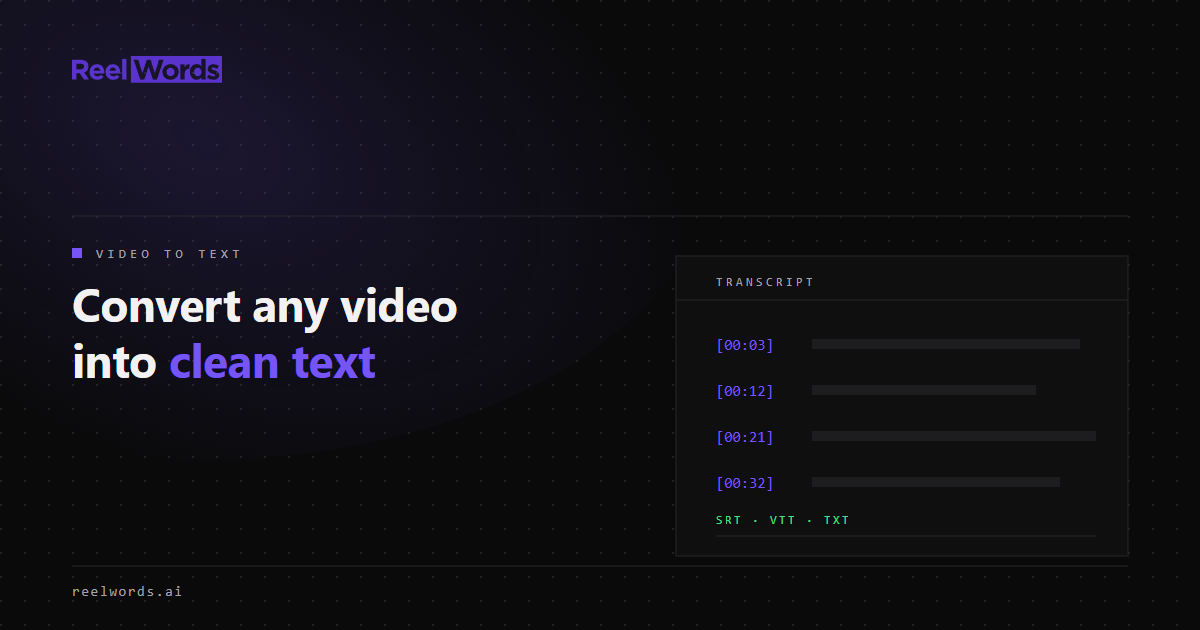
Paste a public video URL into ReelWords and it resolves the video, extracts the audio, and runs AI transcription. You get back the text with timestamps, segment by segment.
Supported sources include:
- YouTube — videos and Shorts
- TikTok
- Instagram — Reels and video posts
- Facebook — videos and Reels
- Many other public video URLs
Advantages: Works on anything public, no file downloading, considerably better punctuation and accuracy than most platform auto-captions.
Limits: Private, age-gated, and login-walled video can't be resolved — that's a platform restriction. Accuracy still degrades on poor audio, heavy accents, and overlapping speech.
Method 3: Upload the File Directly
If the video isn't published anywhere — raw footage, a screen recording, a file someone sent you — upload it.
Advantages: Works regardless of platform. No dependency on a public URL.
Limits: Upload size caps apply by plan (25 MB on free, 200 MB on Pro). Large files take time to upload.
Method 4: Type It Yourself
Worth acknowledging, because for very short clips it's genuinely competitive. A 20-second clip takes about two minutes to transcribe by hand, and you get perfect accuracy.
Past about a minute of video, this stops making sense.
Which Output Format Should You Export
This trips people up more than the transcription itself. The format matters as much as the text:
| Format | Use it for |
|---|---|
| SRT | Subtitles in a video editor — the near-universal standard |
| VTT | Web and HTML5 video players |
| Plain text | Writing, research, quoting, feeding to another tool |
| Timestamped text | Reading while referring back to the video, with [mm:ss] markers |
The common mistake is exporting SRT when you wanted plain text, then spending twenty minutes stripping timecodes and line numbers out by hand. Pick the format for the destination.
Accuracy: What to Expect and How to Improve It
No transcription method is perfect. What moves the needle:
Audio quality dominates everything. A clean recording with one speaker close to a microphone transcribes near-perfectly. Background music, room echo, and distant audio degrade it sharply.
Speaking pace and clarity matter more than accent. Modern speech recognition handles accents reasonably well. Rapid delivery and people talking over each other are harder.
Technical vocabulary and proper nouns are the weak point. Product names, people's names, and jargon are the most common errors. If you're transcribing something with specific terminology, budget time to correct those.
Always review before publishing. For anything going out publicly — subtitles, quotes, published articles — read it through. A ten-second scan catches most problems.
From Text Back to Video
If the reason you converted video to text was to produce subtitles, there's a step after this one: getting the text back onto the video with correct timing and styling.
Exporting SRT and importing it into an editor works, but it's manual, and styling subtitles in most editors is tedious. If subtitles are the goal, going straight from video to styled captions in one tool skips the round trip — see how to add subtitles to a video.
If You Only Need the Gist
Converting a two-hour video to text gives you a 20,000-word document, which is not obviously an improvement on the video.
For YouTube videos specifically, an AI summary compresses that to key points, actionable takeaways, quotes, and facts — usually a better fit when you want to know what was said rather than exactly how.
The efficient pattern for research: summarize first to decide if it matters, then pull the full transcript only for the sources that survive.
What It Costs
Transcript extraction is included on every ReelWords plan:
| Plan | Transcripts per month |
|---|---|
| Free | 10 |
| Pro | 100 |
Current details are on the pricing page.
FAQ
How do I convert a video to text for free?
Paste a public video URL into ReelWords — the free plan includes 10 transcript extractions per month. If the platform already publishes a caption track, retrieval is near-instant.
Can I convert a YouTube video to text without downloading it?
Yes. Paste the YouTube URL directly. There's no need to download the file first.
What's the most accurate way to convert video to text?
AI transcription on clean audio, then a manual review pass for proper nouns and technical terms. Audio quality affects the result more than the choice of tool.
Can I convert TikTok or Instagram video to text?
Yes, for public videos. Paste the URL and the transcript comes back with timestamps where the source provides them.
What format should I export a transcript in?
SRT for video editors, VTT for web players, plain text for writing and research, timestamped text for reading alongside the video.
Does it work on videos in other languages?
Transcription handles a range of languages. Accuracy varies by language and audio quality — review the output before relying on it.
How long does it take?
Videos with an existing caption track return in seconds. AI transcription depends on video length, typically well under a minute for short-form content.
Start With One Video
Paste a link and see what comes back. If the platform already has captions, you'll have the text almost immediately — and you'll know whether the accuracy is good enough for what you need it for.
If the text is headed back onto the video as subtitles, the dynamic captions handle the styling in the same place. See pricing for monthly limits and the FAQ for common questions.