
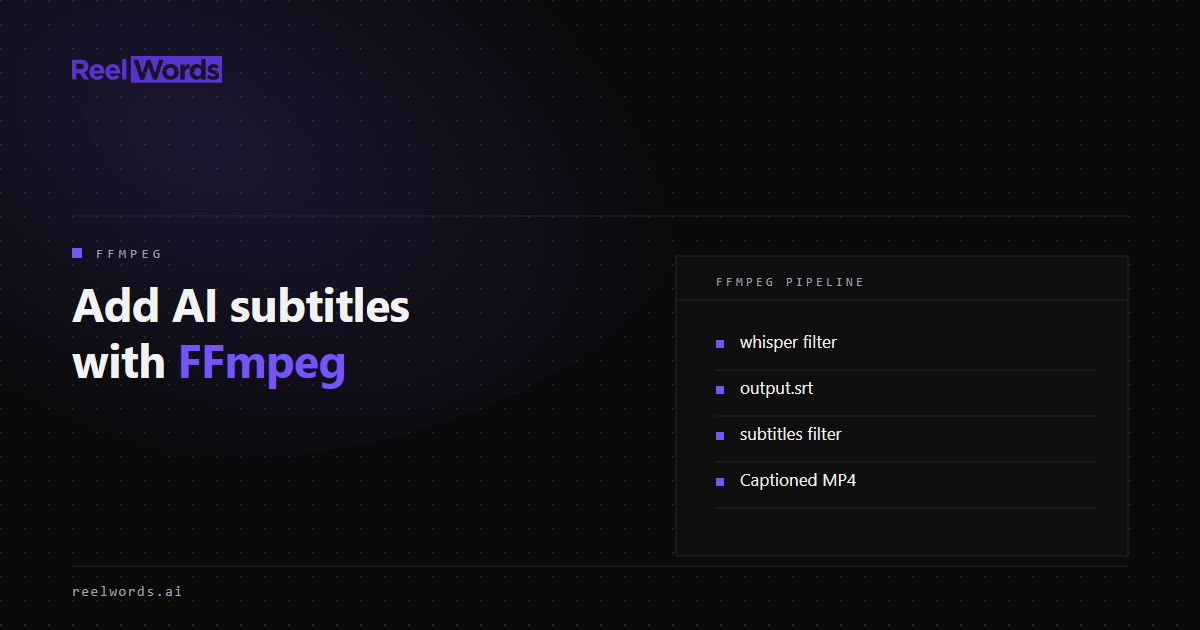
You can add AI subtitles with FFmpeg in two commands: one that transcribes the audio into an SRT file, and one that draws that file onto the video. Since FFmpeg 8.0 the first step can run inside FFmpeg itself through the whisper audio filter. The second step uses the long-standing subtitles video filter.
This guide gives the commands for both steps, the build flags they depend on, and the points where the output needs a human check. If you only need the burn-in half and already have a subtitle file, our guide to hardcoding subtitles into a video covers that on its own.
What you need before adding AI subtitles with FFmpeg
Both filters are optional at compile time, so a given ffmpeg binary may have neither.
whisperfilter: the FFmpeg filter documentation says it requires the whisper.cpp library and a build configured with--enable-whisper. You also need a downloaded whisper.cpp model file.subtitlesfilter: requires a build configured with--enable-libass.
Check your binary before writing any pipeline code:
ffmpeg -hide_banner -filters | grep -E "whisper|subtitles"If whisper is missing, you have three options: install a build that includes it, run the whisper.cpp command-line tool separately, or get the SRT from an API. All three produce the same kind of file, so the burn-in step does not change.
Step 1: Generate the SRT
Option A: FFmpeg's whisper filter
This is the example from the FFmpeg documentation, lightly adapted. It reads the audio, discards the video, and writes an SRT:
ffmpeg -i input.mp4 -vn \
  -af "whisper=model=models/ggml-base.en.bin:language=en:queue=20:destination=output.srt:format=srt" \
  -f null -
The options that matter most:
| Option | What it does | Default |
|---|---|---|
model | Path to the whisper.cpp model file. Mandatory. | none |
language | Language code, or auto to detect it. | auto |
queue | Seconds of audio buffered before each transcription pass. | 3 |
destination | Output file or URL. If unset, text goes to the log. | none |
format | text, srt, or json. | text |
max_len | Maximum segment length in characters, split by word. | 0 (off) |
vad_model | Path to a voice activity detection model. | none |
Two of these change quality more than you would expect. The documentation notes that a small queue processes audio more often at lower transcription quality, and that larger values such as 10 to 20 seconds are more accurate but add latency. For a file on disk, latency does not matter, so raise it. And max_len is how you avoid full-sentence subtitle lines: set it to something like 42 for landscape video and lower for vertical.
The existing destination file is overwritten without a prompt.
Option B: Get the SRT from a transcript API
If the source is a hosted or social video rather than a local file, or you would rather not ship model files in your container, request the SRT instead. With the ReelWords API you create a transcript job from a public URL, poll it, and download the format you want:
# 1. Create the job
curl -s -X POST https://api.reelwords.ai/api/v1/transcript-jobs \
  -H "x-api-key: $REELWORDS_KEY" \
  -H "content-type: application/json" \
  -d '{"url": "https://www.youtube.com/watch?v=VIDEO_ID", "language": "en"}'

# 2. Poll until "status" is "complete"
curl -s -H "x-api-key: $REELWORDS_KEY" \
  https://api.reelwords.ai/api/v1/transcript-jobs/JOB_ID

# 3. Download the SRT
curl -s -H "x-api-key: $REELWORDS_KEY" \
  "https://api.reelwords.ai/api/v1/transcript-jobs/JOB_ID/download?format=srt" \
  -o output.srt
The download endpoint returns 409 with not_ready if you ask before the job completes. The full contract is in the API docs, and the Python version of this flow adds retries and timeouts.
Step 2: Review the file
Open output.srt and read it against the audio before rendering. Speech recognition mishears names, numbers, and jargon, and a burned-in error cannot be edited later. Our checklist for fixing inaccurate auto captions lists what to check first. If the text is right but the cues drift, see how to fix out-of-sync subtitles.
Step 3: Burn in or mux
Burned-in (hard) subtitles
ffmpeg -i input.mp4 -vf "subtitles=output.srt" -c:a copy output-subbed.mp4The video is re-encoded because pixels change. The audio is copied untouched.
To control the look, pass ASS style keys through force_style:
ffmpeg -i input.mp4 \
  -vf "subtitles=output.srt:force_style='Fontname=Inter,Fontsize=22,PrimaryColour=&H00FFFFFF,OutlineColour=&H00000000,Outline=2,MarginV=40'" \
  -c:a copy output-subbed.mp4
Three details trip people up:
- Colours are
&HAABBGGRR, not RGB. The first byte is alpha, where00is opaque, and blue comes before red. - Fonts must be findable. If the named font is not installed, libass substitutes another. Use the
fontsdiroption to point at a folder of font files in a container. - Paths are parsed as filter arguments. A Windows path such as
C:\subs\output.srtcontains a colon and backslashes that the filter parser treats as syntax. Running the command from the folder that holds the SRT and using a relative filename avoids the escaping problem.
Soft subtitles
If the player supports subtitle tracks, keep the text separate. Nothing is re-encoded, so this takes seconds:
ffmpeg -i input.mp4 -i output.srt -c copy -c:s mov_text -metadata:s:s:0 language=eng output-soft.mp4Soft tracks can be switched off, corrected, and translated. Most social platforms ignore embedded tracks on upload, which is why short-form video is usually burned in. The trade-offs between file formats are covered in SRT vs VTT.
Where FFmpeg stops
The subtitles filter draws each cue as static text. It does not highlight the word being spoken, animate entries, or add emphasis colours without a hand-authored ASS file with per-word timing tags. That is the gap between subtitles and the animated captions common on Reels, Shorts, and TikTok.
If that styled output is what you need, ReelWords renders it for you: a caption job takes a video URL and a style ID and returns a captioned MP4. See the available caption styles, or the API-first caption pipeline guide for the request flow.
FAQ
Does FFmpeg have built-in AI transcription?
Yes, from version 8.0, through the whisper audio filter. It is only present in builds configured with --enable-whisper and linked against whisper.cpp, so check with ffmpeg -filters first.
Which Whisper model should I use with FFmpeg?
Start with a base or small model to confirm the pipeline works, then test larger models on your own audio. Larger models are slower and need more memory. English-only models (the .en files) cannot transcribe other languages.
Why does FFmpeg say "No such filter: subtitles"?
Your build was compiled without libass. Install a full build, or compile with --enable-libass.
Can FFmpeg translate subtitles?
The whisper filter has a translate option that translates the transcription into English, and it requires a multilingual model. It does not translate into other languages.
How do I make subtitle lines shorter?
Set max_len on the whisper filter to cap characters per segment, or re-split the SRT afterwards. For burn-in, a smaller Fontsize and larger MarginV in force_style also help on vertical video.
Is burning in subtitles lossy?
The video stream is re-encoded, so there is some generation loss. Set an explicit quality, for example -c:v libx264 -crf 18, and copy the audio with -c:a copy.
Can I do word-by-word highlighted captions in FFmpeg?
Only by generating an ASS file with per-word karaoke timing and rendering that. FFmpeg will draw it, but it will not create it for you.
Want styled captions without maintaining FFmpeg builds? Explore ReelWords auto captions, check pricing, or read the FAQ.